Passkey Authentication
Passkey authentication uses device-bound credentials to provide passwordless sign-in. This guide explains how to enable and configure passkey authentication for signup and login in AuthAction.
Enabling Passkey Authentication
Section titled “Enabling Passkey Authentication”To enable passkey authentication in AuthAction:
-
Navigate to the Database Connection Settings
- Go to the AuthAction Dashboard.
- Open the Database Connection.
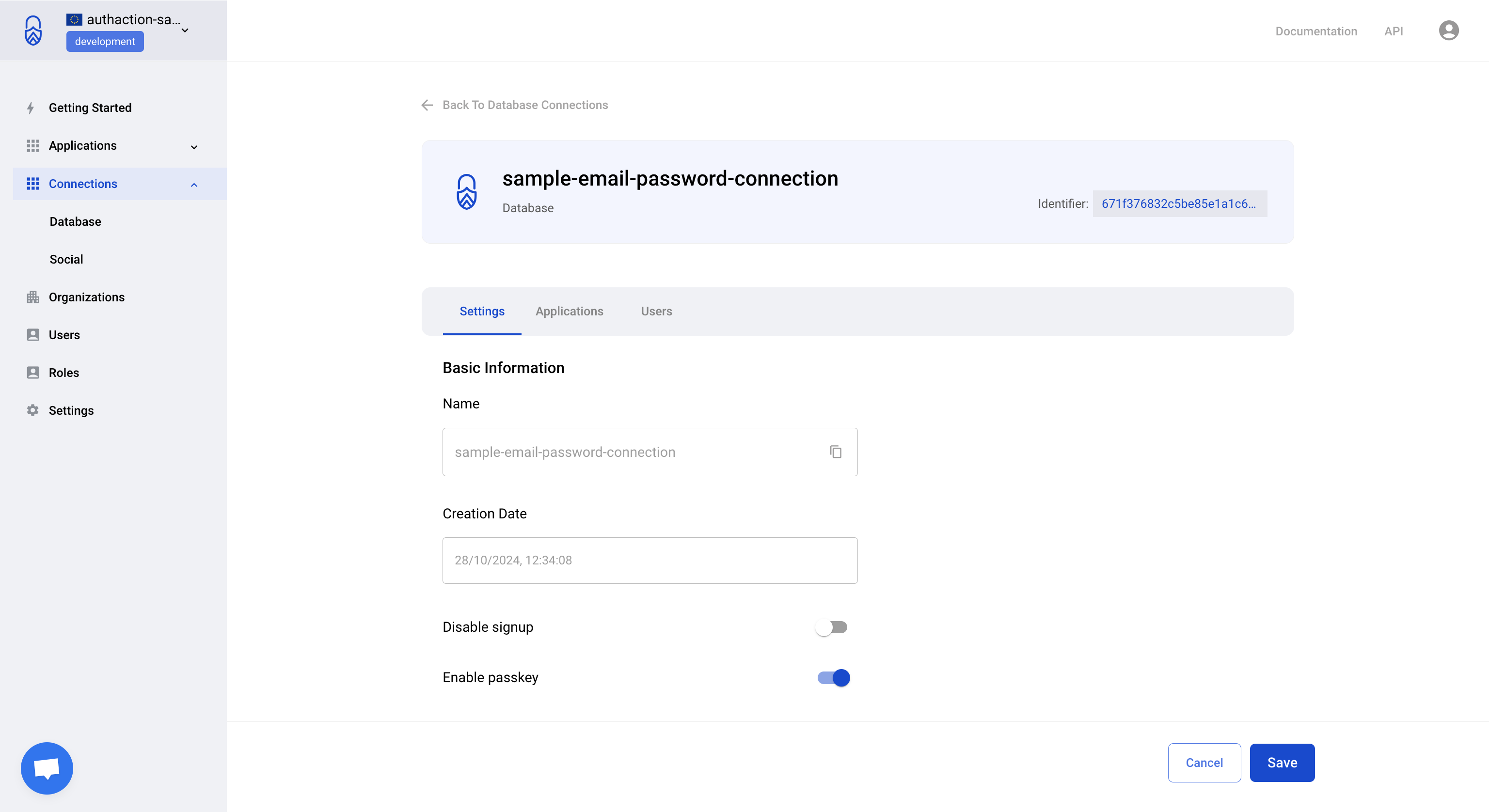
- Locate the Enable Passkey option on the database connection settings page.
-
Enable Passkey Authentication
- Toggle the switch to enable passkey authentication for your database connection.
- Save the changes.
- Ensure the connection is enabled for your application.
Setting Up a Passkey During Signup
Section titled “Setting Up a Passkey During Signup”When a new user signs up, they can set up a passkey as follows:
-
Go to the Signup Page
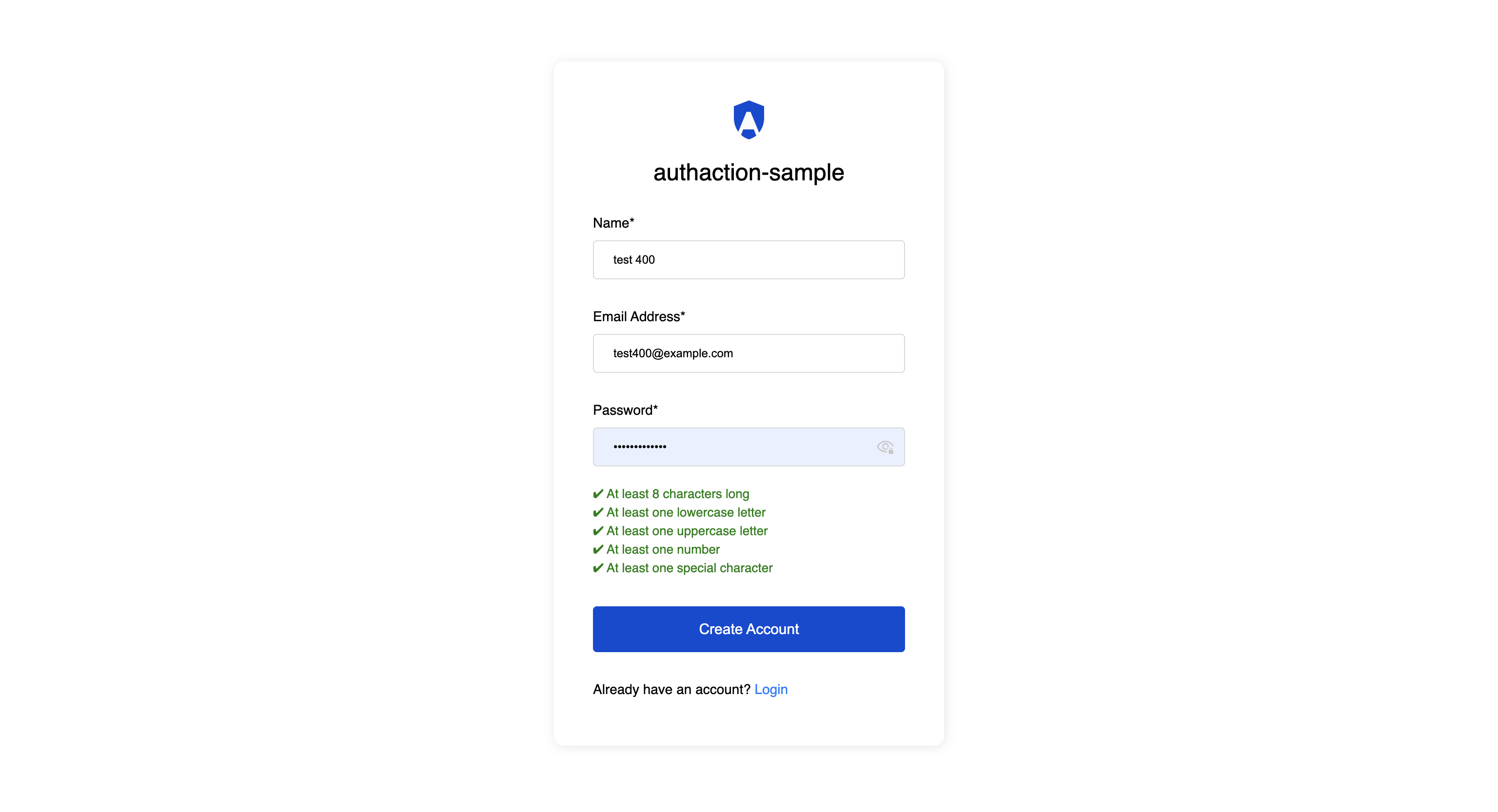
- Navigate to the Application signup page.
- Fill in the required user details (such as email and name).
-
Setup a Passkey
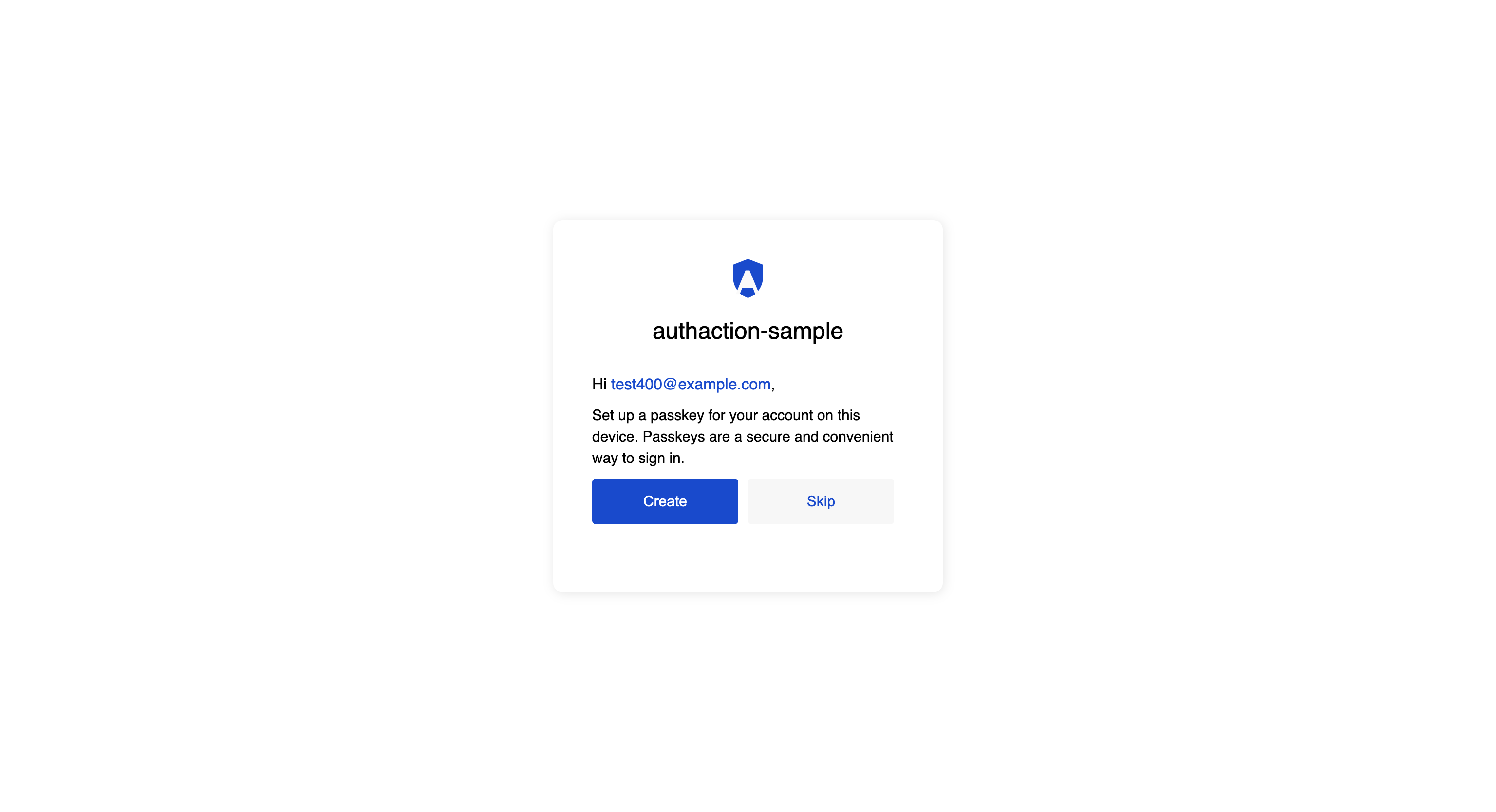
- When prompted, choose the option to Set up a Passkey.
- A pop-up will appear asking for biometric authentication or a security key confirmation.
- Complete the device authentication process.
-
Complete Signup
- Once the passkey is registered successfully, the user is signed up.
- They can now use passkey authentication for future logins.
Logging in With a Passkey
Section titled “Logging in With a Passkey”To log in using a passkey:
-
Go to the Login Page
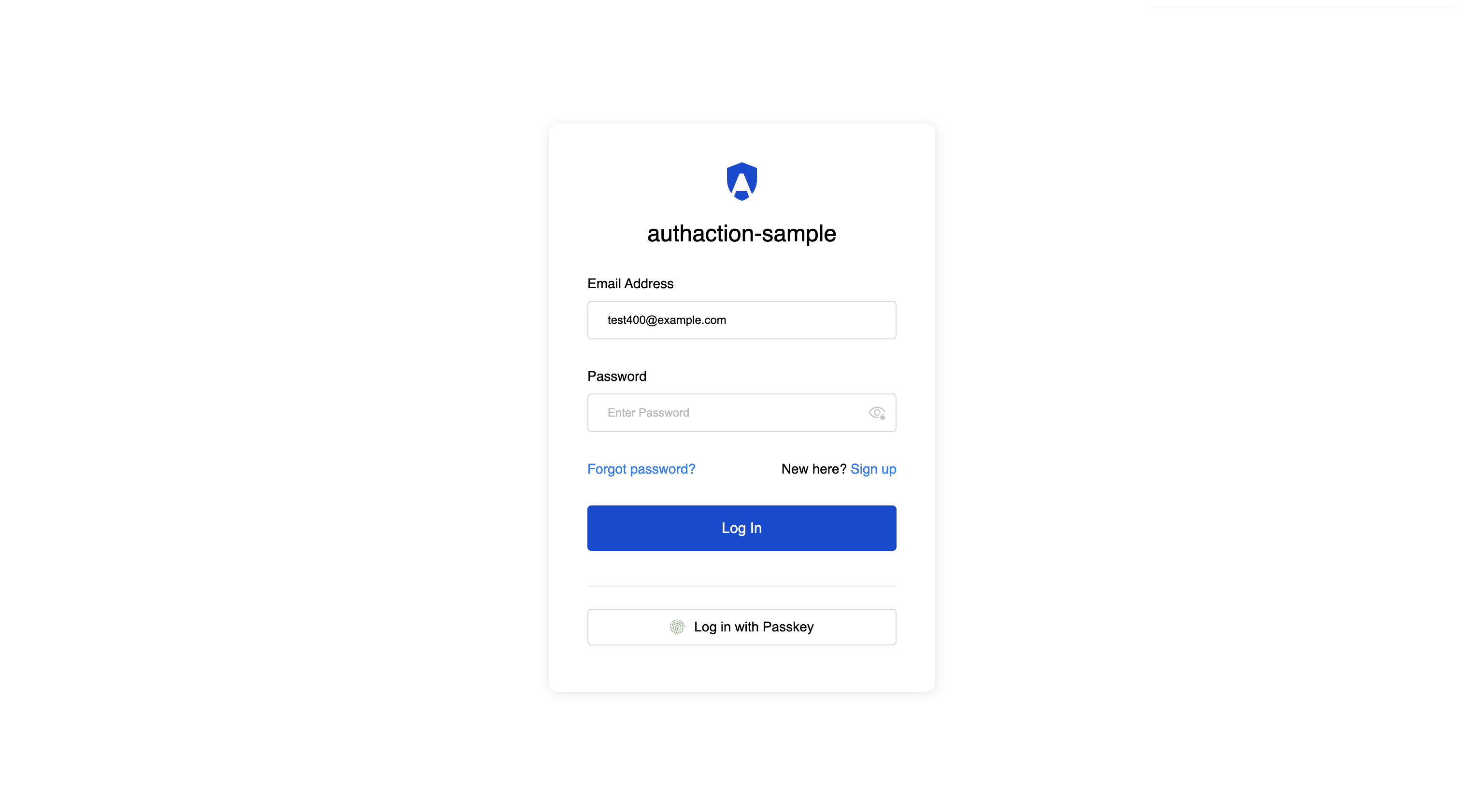
- Open the Application login page.
- Click on Login with Passkey.
-
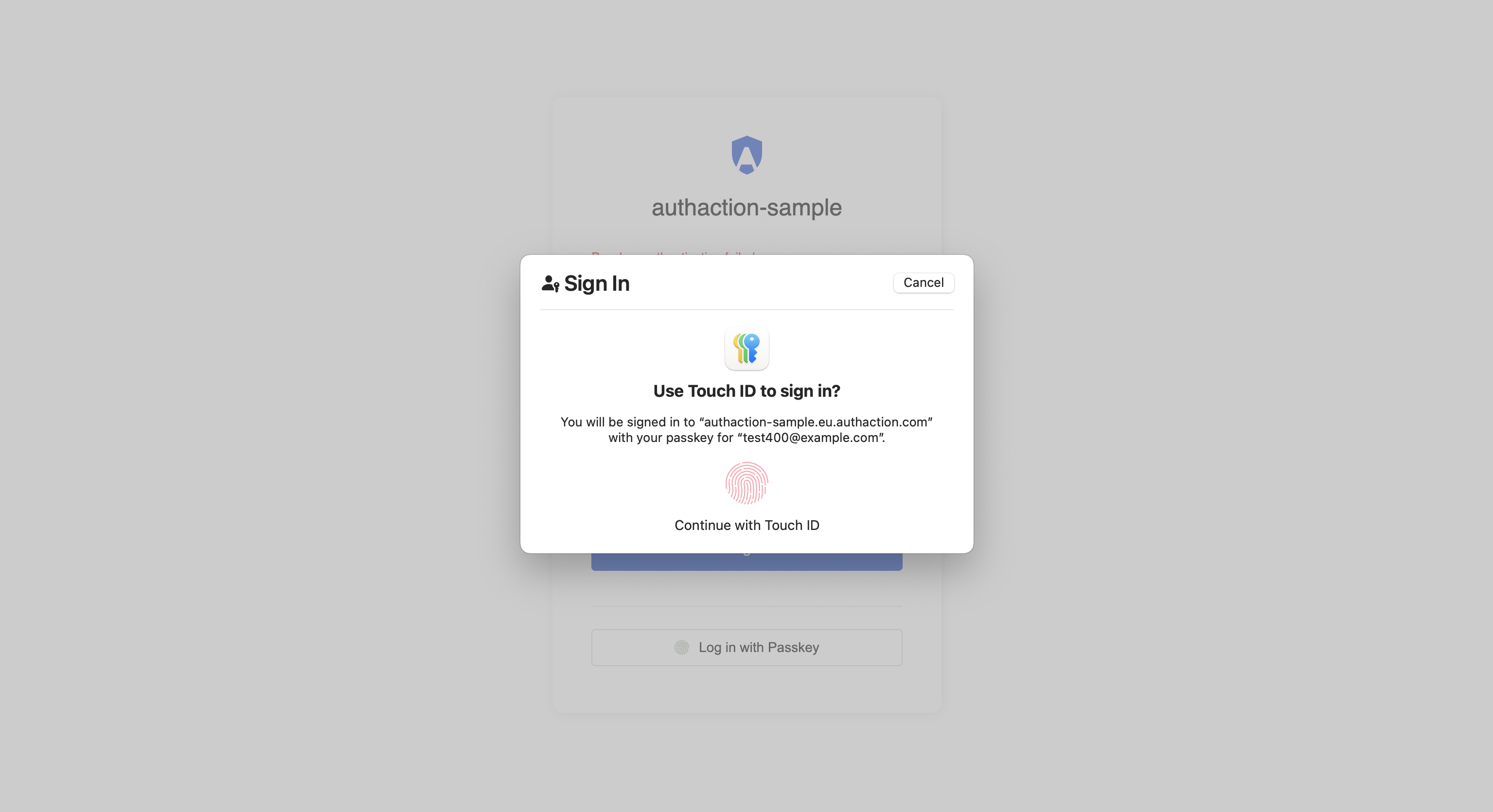
Authenticate Using a Passkey
- A pop-up will appear asking for biometric verification or security key authentication.
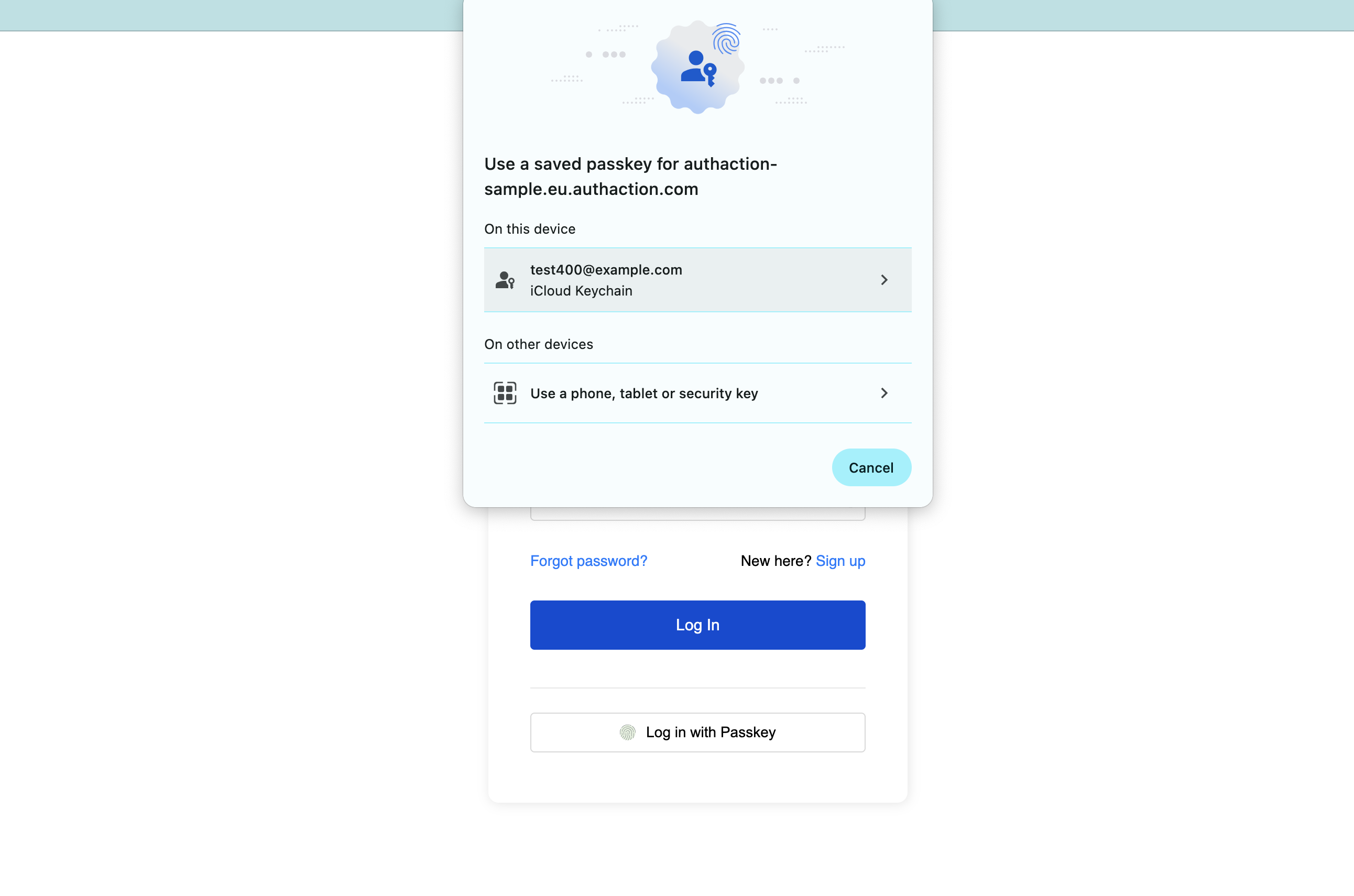
- Authenticate using the registered passkey.
-
Access Granted
- Upon successful authentication, the user is logged in without entering a password.
Security Considerations
Section titled “Security Considerations”- Passkeys are device-bound, meaning they are stored securely on the user’s device and cannot be phished.
- Users should register passkeys on multiple trusted devices to avoid lockout issues.
- Fallback authentication (such as email-password-based login) should be possible in case the user loses access to their passkey.
Managing Passkeys
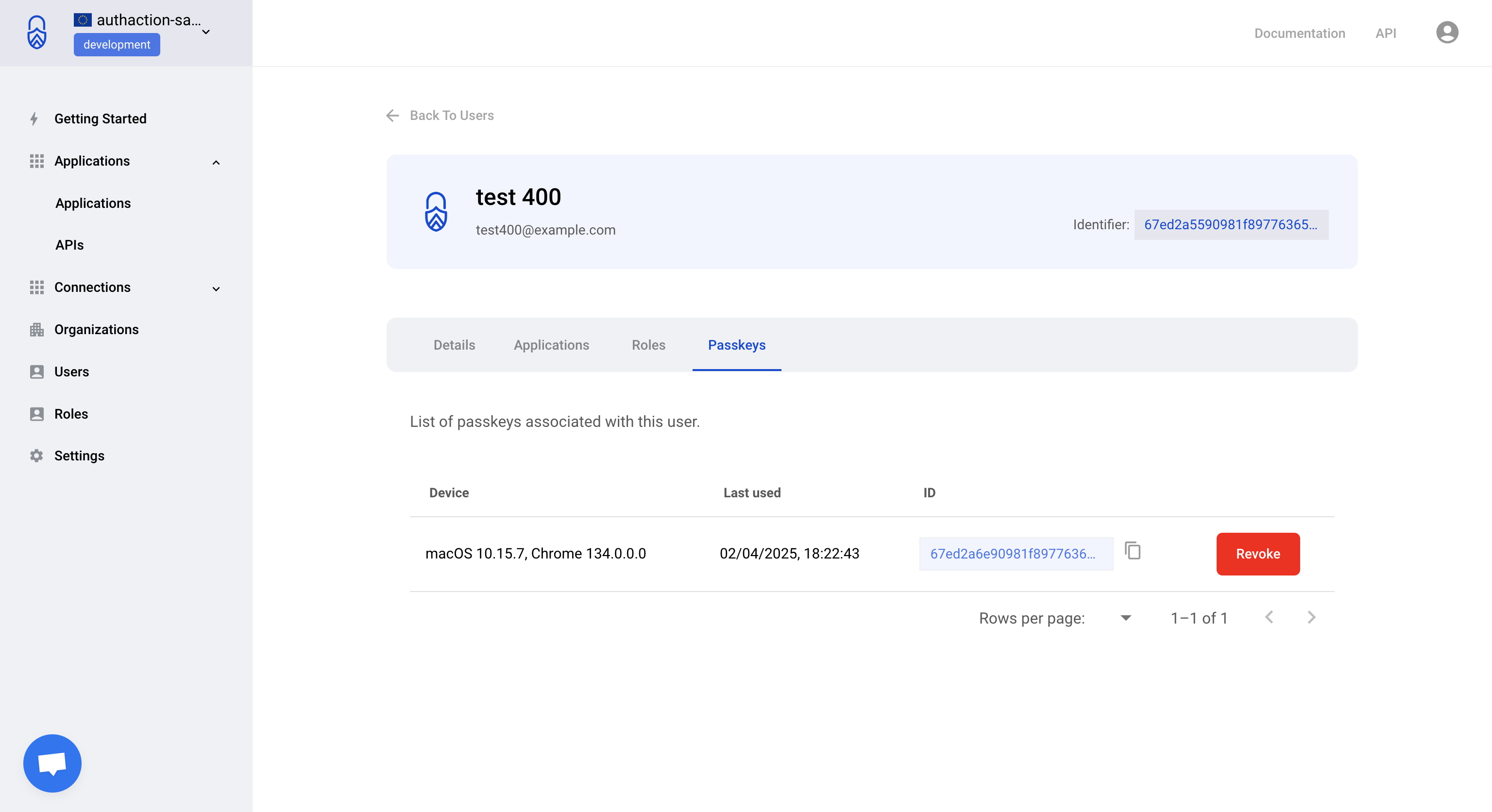
Section titled “Managing Passkeys”Administrators can manage user passkeys from the User Details page:
- Open the AuthAction Dashboard and go to Users.
- Select a user to open their User Details page.
- View all registered passkeys in the Passkeys section.
- Remove a passkey by clicking Remove next to the credential.
Summary
Section titled “Summary”Passkey authentication eliminates passwords while providing phishing-resistant security. Enable it in the database connection settings and manage credentials through the User Details page.